Odysseus AI Not Working?
Diagnose Docker, Ollama, Login and Port Errors
If your Odysseus AI is not working, do not start randomly editing .env, deleting folders, disabling auth, or pasting full logs into public chats. Most Odysseus setup failures fall into a small number of categories: admin password, localhost:7000, Docker Compose, Ollama endpoint, Windows PowerShell, Python version, GPU/runtime mismatch, or API provider configuration.
This page helps you identify the likely error category, run the first safe check, avoid leaking secrets, and decide whether you need the Launch Kit, a Fix Report, or Remote Setup. If Odysseus AI is not working after a fresh install, start by classifying the symptom instead of changing several variables at once.
We do not sell Odysseus AI itself. We provide independent setup, troubleshooting and support resources for people trying to run the official open-source project more safely.
Guarantees & Guidelines
- •100% Redacted Logs Focus
- •No personal credentials collected
- •Actionable terminal tests only
- •Local loopback first rulesets
- •One reversible check before every fix
What broke first in your Odysseus AI setup?
Use this quick map to locate your current symptom before modifying any setup parameter.
When Odysseus AI is not working, the useful question is not just “what error happened?” It is “what stage failed first?” A login problem, a blank localhost page, a stopped Docker service, an Ollama endpoint mismatch, and a missing model list can all happen on the same machine, but each one has a different first command and a different safe recovery path.
| What you see | Likely category | First check |
|---|---|---|
| Login page, but no password known | Admin password / first login | Check first-run terminal or Docker logs |
| localhost:7000 does not open | App not running, port conflict | Check server/container status and expected port |
| Ollama not detected | Endpoint mismatch or Ollama not running | Check native vs Docker endpoint |
| Docker compose failed | Docker, .env, volume, permission or health | Run docker compose ps and inspect logs |
| PowerShell blocks script | Windows execution policy or wrong shell | Run from PowerShell with documented command |
| Python error / venv error | Python version or dependency issue | Confirm Python 3.11+ |
| Model replies very slowly | Hardware/model runtime issue | Separate UI setup from local model serving |
| API key/provider error | Provider config or unsafe key | Do not paste keys; test endpoint locally |
All checks below prioritize safe terminal feedback without exposing credentials.
Evidence to capture
Record your operating system, install route, last command, browser URL, and one redacted error line. That small packet is enough to separate port conflict from admin login, Docker Compose, Ollama, or provider issues.
First commands
Docker users should start with docker compose ps and recent logs. Native users should check the terminal that launched Odysseus. Ollama users should confirm the endpoint and model registry before reinstalling.
Stop conditions
Stop before deleting data folders, turning off authentication, exposing APP_BIND=0.0.0.0, or sharing full .env files. Those moves can turn a small Odysseus repair into a security problem.
Next guide
If the category is clear, jump to the matching guide: Docker for service health, Ollama for endpoint mapping, Windows for PowerShell and Python, Mac for port 7860 and shell permissions.
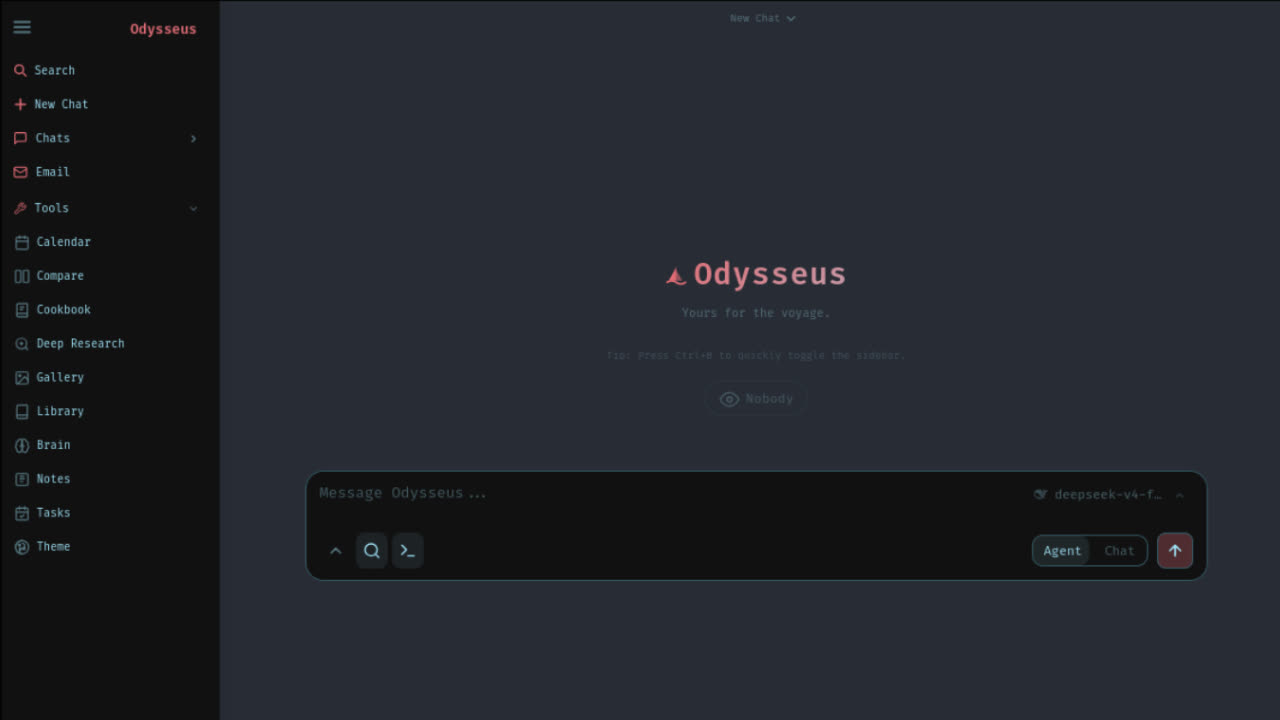
Build a useful repair packet before asking for help
Write the operating system, install route, and whether Docker, native shell, Ollama, or an API provider is involved. If Odysseus AI is not working on Windows, include PowerShell and Python status. On Mac, include Apple Silicon or Intel and the printed port.
Capture the last command, the local URL you opened, and one redacted log excerpt. Docker users should include container status. Ollama users should include the endpoint and whether /api/tags returns model JSON.
Say what changed immediately before the failure: new model, edited .env, port change, password reset, Docker rebuild, or provider setting. This single detail often separates a port conflict from an endpoint or login problem.
Keep the original terminal open when possible, because first-run output often contains the temporary admin password, the active local port, or the exact failed dependency. If you submit a Fix Report, include only sanitized context and remove API keys, tokens, generated passwords, private directories, screenshots with secrets, and full environment values.
The strongest repair packet is short but precise: one install route, one reproducible symptom, one command result, and one safe next question. If Docker is involved, include service health and recent logs. If Ollama is involved, include whether the model server is native, host-side, or LAN-based. If login is involved, say whether the temporary password was never printed, rejected, or already changed.
Choose your Odysseus error type
This mini diagnosis tool runs a local triage rule. It does not need your API key, password, token, full .env, or private logs. Follow the steps below.
Use the wizard when Odysseus AI is not working but you do not know whether the failure belongs to the operating system, the install route, the current stage, or the visible symptom. The generated result gives one diagnostic command and one set of actions so you can change a single variable, verify it, and then move forward.
Step 1: What host operating system are you using?
REPAIR MODE
You're stuck.
Let's get you unstuck without reinstalling.
You're here because something broke. You've tried a few things. Now you're wondering if you should just delete everything and start over. Reinstalling feels productive. But it's usually not the answer.
Launch Kit tells you exactly where.
Launch Kit tells you exactly where. Repair Before Reinstall is our core promise. Triage trees for admin password, port, Docker, and Ollama. The next safe check, not another random change.
Reinstalling is easy. But your time is worth more than $19.9. Get the Launch Kit and fix it properly this time.
Launch Kit gives you:
First Response Checklist
What to check before you delete anything.
Admin Password Finder
Locate the generated credentials safely.
Port Conflict Resolver
Port 7000, 7860, and beyond.
Docker Compose Doctor
Container health, logs, and env verification.
Ollama Connection Triage
Endpoint mapping, detection failure recovery.
Safe Reinstall Path
If you must, do it without losing data.
Save one evening.
That's all we ask.
ONE-TIME ACCESS
$19.9
Beta price
Secure checkout
Powered by Stripe
30-day satisfaction
guarantee
Built by developers
for developers
Before you paste anything: safe log rules
Troubleshooting Odysseus should not expose your secrets. If your Odysseus AI is not working, you may be tempted to paste everything from terminal, Docker logs, .env, or screenshots. Do not do that.
- The exact error message code returned in terminal
- The last 20–50 lines of redacted application logs
- Your host Operating System and CPU hardware class
- Your selected setup route (Docker versus Native script)
- Whether you are mapping to host Ollama or private APIs
- Output diagnostics returned by
docker compose ps
- Active OpenAI, Anthropic or external provider API Keys
- Your local Odysseus first-launch temporary Admin Password
- Home directory path segments displaying private names
- Raw backup databases or
.envfiles unchanged - Private email logs, custom tokens or bearer keys
- Screenshots displaying active key values or file routes
🛡️ Safe Log Redactor Engine
Paste your raw terminal or log text below. We will use local JavaScript logic to match and redact pattern keys (like sk-... or password=...) cleanly before you request further checks.
Diagnose standard symptom files & errors
Select any category row down below to view expected symptoms, first validation steps, commands, and security warnings.
The library is organized by repair intent rather than keyword labels. Admin password recovery, localhost refusal, Ollama not detected, Docker Compose failures, and Windows PowerShell restrictions each include a specific first check. That keeps Odysseus AI not working triage tied to evidence instead of repeated reinstall attempts.
On first setup, Odysseus creates an admin account. The default username is usually admin unless changed with environment config arrays. The temporary password is printed during first setup inside your active terminal bounds. For Docker mounts, search the container standard log streams:
docker compose logs odysseus | grep -i passwordIf that does not return anything, inspect recent logs:
docker compose logs --tail=120 odysseusAUTH_ENABLED=false just to bypass login issues. This deactivates verification algorithms, leaving internal services fully exposed. Retrieve files temporary passwords or request safe clean rebuild reports.MAC APPLE SILICON
On Apple Silicon Macs, running Odysseus natively is recommended for local models since Docker on macOS cannot map to the native Apple Metal GPU. Also, the native macOS script often maps the server to port 7860 instead of 7000 because of Airplay AirTunes loops:
GPU CPU FALLBACKS
Are models taking minutes to reply? Check container variables. Do not assume pass-through variables mapping inside container configuration panels instantly results in CUDA optimization. Test native host serve parameters first before debugging Docker volumes.
API ENDPOINT SAFETIES
If connecting to OpenAI or OpenRouter models, we recommend mapping tokens directly through the application settings menu instead of hardcoding sensitive strings inside .env. This protects variables if repositories are accidentally public.
Request a Fix Report
If your Odysseus AI is not working and local checks do not solve it, submit a redacted diagnostics summary below. An environment support engineer will analyze your variables, match logs against registered database issues, and email an actionable local repair report.
sk-...), first launch passwords, or private home directory paths. Review the Safe Log Rules before submitting.Want the Odysseus Launch Kit before you keep guessing?
The Odysseus Launch Kit is open as a paid beta: setup path selector, preflight checks, safe config templates, Ollama connector guidance, admin login assistant, port fix assistant, and workflow/agent starters.
Frequently Asked Questions (FAQ)
Browse these structured answers covering common Odysseus AI errors, Ollama DNS vectors, port variables, and safety guidelines.
Still stuck with Odysseus AI?
Do not paste secrets. Do not expose raw ports. Do not delete your data blindly. Start with the error category, then take the next safe check. Choose the safest next step for your system context below.
Use this page to fix Odysseus setup errors by category: login, localhost, Docker, Ollama, Windows scripts, Mac ports, or provider keys. Keep the next action small, reversible, and tied to the exact symptom you can reproduce. For an Odysseus AI not working report, include the route you chose, the command you ran, the exact visible error, whether the browser opened, whether Docker containers are healthy, whether Ollama responds to tags, and whether the admin password was captured. This keeps the repair path specific, reversible, and safe. If the same command fails twice, stop changing settings and document the state before trying another repair branch.